
Record
Role or assessment ID, scheduled window, local time with time zone, stage reached, exact error text or code, device/browser version, connection state, actions already tried and support ticket ID.
Online assessment technical problems
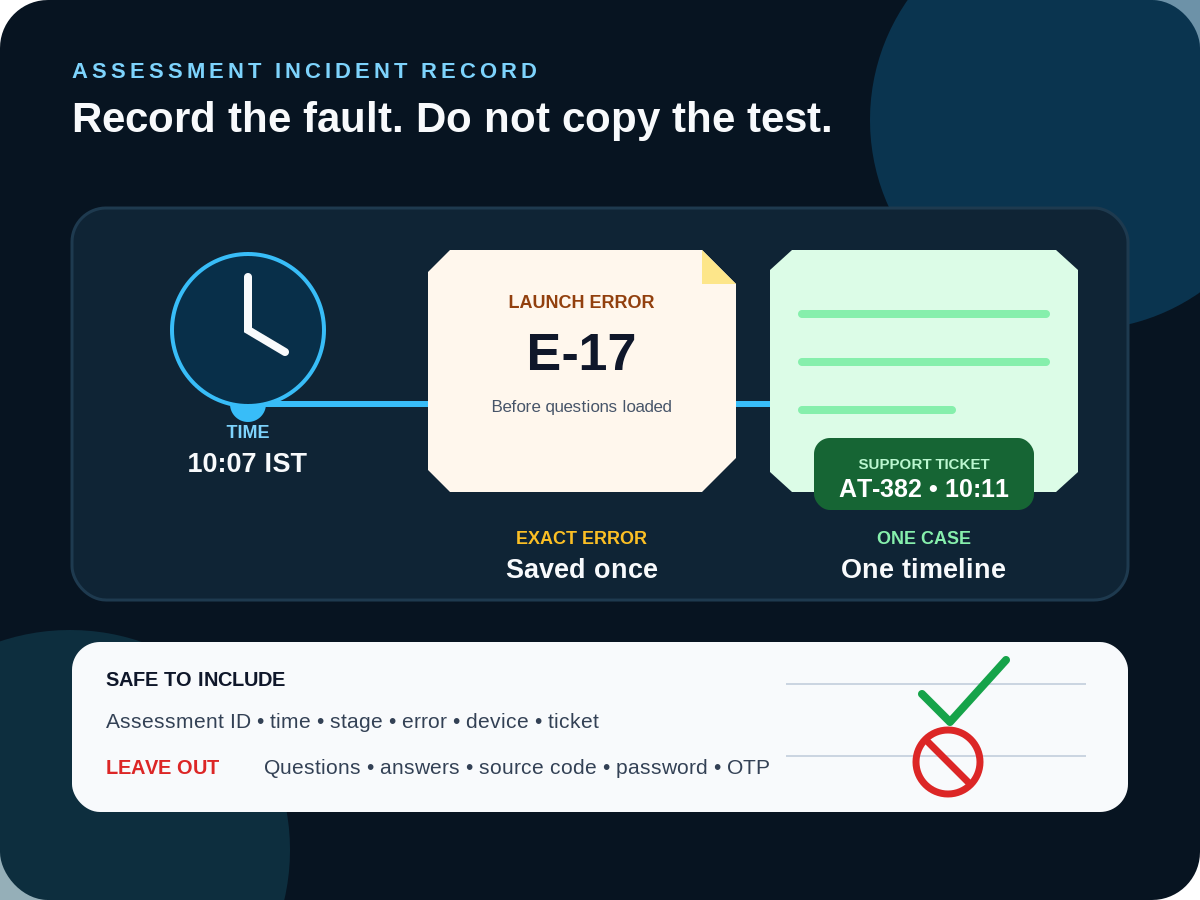
Stop repeated retries. Note the time, assessment ID, stage and exact error without copying any question. Follow the official recovery step once, open one support case and contact the assessment owner. Never bypass proctoring or guess whether a device or network change is allowed.
Before assessment day
The invitation controls permitted browser, device, network, identification, environment and assistance. If a rule is missing or conflicts with the system check, ask the named owner before the assessment.
| When | Check | Record | If it fails |
|---|---|---|---|
| 24 to 48 hours before | Official system check, supported browser and operating system | Pass result and check time | Use the invitation's support route while time remains |
| 24 hours before | Camera, microphone and permissions only if required | Whether the authorised check detected each device | Review OS and browser permissions; do not install unknown tools |
| 24 hours before | Stable power, charger and allowed backup connection | Primary setup and permitted fallback | Ask whether a location or network change is allowed |
| 30 minutes before | Invitation link, login method, time zone and start window | Assessment owner and support contact | Resolve access before the start window |
| 10 minutes before | Close unrelated apps and notifications as the rules require | Device ready time | Do not disable security controls or proctoring |
Safe incident record
Example incident note
Assessment JG-104 · 20 Nov · 10:00 IST window. At 10:07, after the authorised camera check passed, the launch page returned error E-17 before any question appeared. Chrome 142 on Windows 11; power connected; primary network online. Refreshed once as the support article instructed, then stopped. Support ticket AT-382 opened at 10:11.
During the attempt
| Problem | Immediate action | Owner to contact | Do not |
|---|---|---|---|
| Invitation or login fails before launch | Recheck the official link, account and start window | Assessment support or employer contact named in the invitation | Create another account unless instructed |
| Camera or microphone check fails | Review the authorised browser and OS permissions | Assessment support | Disable proctoring, use virtual devices or install remote-control tools |
| Page freezes or disconnects | Note the time and connection state; follow the published resume step | Assessment support; inform TPO for a campus drive | Repeatedly refresh or change devices when rules do not allow it |
| Timer appears wrong | Record the displayed time without copying question content | Assessment support immediately | Assume extra time will be added later |
| Submission confirmation is missing | Wait for the published response, keep the final time and attempt ID | Assessment support or named employer owner | Start a second attempt without authorisation |
| Power or local network fails | Use only a permitted backup and record the outage time | Assessment support; TPO if college-managed | Claim completion or change location without checking rules |
Who owns the answer
| Owner | Use them for | Include |
|---|---|---|
| Assessment support | Access, launch, browser check, timer, disconnect or submission receipt | Assessment ID, time, error code and safe device details |
| Employer or recruiter named in the invitation | Eligibility to attempt, schedule, authorised reschedule or result-process question | Role ID, assessment ID and support ticket |
| TPO or drive coordinator | Campus roster, shared lab/network incident or escalation for a TPO-managed drive | Affected stage, number of students affected and support reference |
| College IT team | College-owned power, network or device issue | Location, outage time and technical symptom, without test content |
Recovery path
Campus incident queue
| Pattern | TPO response | Evidence without question content |
|---|---|---|
| One student; system check not completed | Direct the student to official support and record the missed preflight | Check time, error and ticket |
| Several students; same lab and time | Ask college IT to confirm power/network status and send one consolidated escalation | Affected count, location, start/end time and support references |
| Several locations; same error code | Escalate to assessment owner with grouped incident IDs | Error code, times, browser versions and ticket IDs |
| Attempt completed; receipt missing | Reconcile attempt IDs before requesting a new attempt | Finish time, attempt ID and support acknowledgement |
Copy this support message
Subject: Launch error E-17 · assessment JG-104 · 10:00 IST
At 10:07 IST, the launch page showed E-17 before any question appeared. The authorised system check passed at 09:42 on Chrome 142, Windows 11. I refreshed once following the support instruction and stopped. My attempt ID is AT-382. Please confirm whether the attempt is recorded and the approved next step.
Frequently asked questions
Only if the official instructions say to do so. Record the time first, then follow the published recovery sequence once.
Use a backup connection only when the assessment rules permit it. A network or location change can affect a proctored session.
Use the support instructions. If a capture is allowed, frame only the error and remove question content, answers, identity numbers and unrelated personal data.
The authorised assessment or employer owner decides under its rules. Support logs and a clear timeline help them review the incident; they do not guarantee a new attempt.
Keep the application connected
Copy the assessment ID, safe error time, action already tried and support reference into one message to the authorised owner.